Arabic App Store screenshots: how to localize them
Arabic is often the first right-to-left language app makers add, and it changes more on a screenshot than any left-to-right language does: the caption reads from the right, the letters join up, app names in Latin letters sit inside Arabic text, and numbers and punctuation have their own rules. This guide covers what to change in your screenshot captions and store text for Arabic, on both the App Store and Google Play. Updated 31 October 2026.
Which App Store storefronts show Arabic
Here's something that surprises people: in Apple's App Store localizations table, Arabic isn't the default language in any country or region. It's listed as an additional language in 17 storefronts:
| Country or region | Default language | Additional supported language(s) |
|---|---|---|
| Saudi Arabia, United Arab Emirates, Bahrain, Iraq, Jordan, Kuwait, Libya, Oman, Qatar, Yemen | English (U.K.) | Arabic |
| Algeria, Egypt, Lebanon, Mauritania, Morocco, Tunisia | English (U.K.) | Arabic, French |
| United States | English (US) | Arabic, Chinese (Simplified), Chinese (Traditional), French, Korean, Portuguese (Brazil), Russian, Spanish (Mexico), Vietnamese |
What this means in practice:
- The default in the Gulf and North Africa is English (U.K.), not English (US). If you only have an English (US) listing, check what customers there actually see.
- Your Arabic listing is the "additional" language. Apple says the language a customer sees can be affected by the App Store language for their location, their device's language settings, the languages you've added and your primary language. So treat the table as a guide, not a guarantee.
- In the North African storefronts, French is listed too. If you already have French, those six storefronts can show it as well.
- There's one Arabic. Apple's list of metadata languages has a single "Arabic", so you write one Arabic localization for every storefront.
Full list of all 50 languages and every country's default: App Store localization languages.
Writing Arabic captions that fit
Right to left, and aligned to the right
Arabic is written from right to left. W3C's Arabic & Persian Layout Requirements (alreq) notes that "lines of Arabic script text are normally right aligned within the page". Apple's Human Interface Guidelines say the same for interfaces: if you left-align text in the left-to-right layout, right-align it in the right-to-left one.
For screenshot captions that means:
- Left-aligned English caption → right-aligned Arabic caption. A centred caption can stay centred.
- The full stop goes at the left end. It's at the end of the sentence, and the sentence ends on the left. Our Streakly demo below shows it.
- If your caption is in HTML (or a tool built on it), set
dir="rtl"on the caption. MDN describesdiras the attribute that "sets the element's base text direction". Setting onlytext-align: rightisn't enough: the punctuation and any Latin words can still end up in the wrong place.
App names and other Latin words inside Arabic
Your app name usually stays in Latin letters, so an Arabic caption often mixes two directions. The Unicode Bidirectional Algorithm decides the order, and alreq explains that "all the Arabic letters are marked as right-to-left characters, while Latin characters have the left-to-right category", while spaces and punctuation take their direction from their neighbours or from the paragraph. That's where captions go wrong: a full stop or a "+" next to "Pro" can jump to the wrong side.
- Isolate the Latin run. MDN says the
<bdi>element "tells the browser's bidirectional algorithm to treat the text it contains in isolation from its surrounding text". Wrapping "Streakly" or "Tempo Pro" this way keeps it in one piece and in the right position. - Don't break a line inside the Latin name. alreq notes that when a left-to-right run is split across lines inside right-to-left text, the lines still have to read in spoken order, because "it is never correct to read lines from bottom to top". A two-word app name split over two lines of an Arabic caption is hard to follow. Keep it on one line.
- Look at the result, not the text file. In a text editor a mixed caption can look scrambled even when it renders correctly, and the other way round.
Wrap between words; don't stretch the letters apart
- Lines break between words. alreq: "When Arabic text doesn't fit within the available line width, the text is wrapped to the next line between words."
- No letter-spacing. Arabic letters join, and alreq warns that "moving two joined characters closer to or further from each other creates undesirable results". If your English captions use wide tracking (common on bold, uppercase headlines), set the Arabic tracking to zero. alreq notes that when Arabic is stretched, for example in a heading, the stretching lengthens the baseline between letters, and that this does "not correspond to letter-spacing in non-cursive scripts".
- Careful with outlines and see-through text. alreq notes that Arabic fonts join letters by overlapping them, so a text border drawn around each letter, or semi-transparent letters, can expose the joins. Prefer solid text on a solid or blurred background.
- Leave more line height. alreq: "Arabic ascenders and descenders extend much further than those of the Latin script". A two-line caption with tight English line spacing can make the lines collide.
No capitals, so check the size
Arabic has no upper and lower case. Apple's HIG warns that Arabic text "can appear too small when next to uppercased Latin text", and suggests that increasing the Arabic font size "by about 2 points" often balances it. If your English captions are all caps, look at the Arabic set next to the English one and bump the size if it looks weaker. Microsoft's Arabic style guide also notes that "there's no capitalization in Arabic" and suggests quotation marks where English uses capitals to highlight a term.
Numbers: pick a digit style and keep it
Arabic text can use two kinds of digits, the European 0–9 and the Arabic-Indic ٠١٢٣٤٥٦٧٨٩. Apple's HIG says Arabic "might use either Western or Eastern Arabic numerals", and that the choice "varies among countries and regions and even among areas within the same country or region". alreq notes that digit use differs between the Western and Eastern Arab regions. Microsoft's Arabic style guide gives a clear default: "always use the Western Arabic Numbers (1, 2, 3, 4, 5, etc.) which are becoming standard almost all over the Arab World."
For captions:
- Match your app. If the app UI in the screenshot shows 0–9, use 0–9 in the caption too. Mixed digit styles on one screenshot look like a mistake.
- Small numbers are often written as words. Microsoft's guide says 0, 1 and 2 aren't written as digits in Arabic: "0 students" becomes "no students", 1 is spelled out, and 2 uses the dual form (طالبان, "two students"). A caption like "Done in 2 taps" usually needs rewording, not just a digit swap.
- Never reverse the digits of a number. Apple's HIG: the digits of a number such as "541" or a phone number "always appear in the same order". Numbers read left to right even inside right-to-left text.
- Percent and currency signs: alreq notes that with Arabic-Indic digits the percent sign goes on the left of the number, and that currency signs placed next to a number are treated as part of it. Check these by eye.
Arabic punctuation
From Microsoft's Arabic style guide:
- The comma is a different character, typed with its own key: ، rather than ",". No space before, a space after.
- The question mark is mirrored: ؟ (its example: هل تريد إعادة المحاولة؟, "Do you want to try again?").
- The full stop works as in English: no space before, a space after.
Our caption guide recommends no full stop on short captions. In Arabic, whatever you choose, use the same style on every screenshot.
Address the reader without picking a gender
Arabic verbs and pronouns change with the gender of the person you're talking to, so a short English imperative such as "Track every habit" has to pick a form in Arabic. Microsoft's Arabic style guide says gender-neutral language "should be used in new products and content going forward", and suggests ways around it: use plural nouns for generic references, use forms such as يرجى or يمكنك ("please" / "you can") followed by a verbal noun, and in tooltips use the verbal noun (المصدر) instead of a gendered verb. For screenshot captions, noun phrases ("your whole day at a glance") do this naturally. Ask your translator to keep the same approach on every screenshot and in the description. (Applying this to captions is our recommendation; Microsoft's guide is written for software UI.)
Microsoft's guide also asks for a natural, not stiff, tone. For example, it prefers يمكنك over the more formal يتسنى لك for "you can".
Choose a font that really has Arabic
- Check the whole character set. A Latin-only brand font has no Arabic letters, so the device or tool falls back to some other Arabic font, which may not match your weight or style. Pick an Arabic font yourself.
- Free options: Google Fonts lists Noto Sans Arabic in nine weights (Thin to Black), which makes it easy to match a bold English headline, and Noto Naskh Arabic, a serif in four weights (Regular to Bold). alreq describes Naskh as "the default form of Arabic in most contexts, notably as a model for typography".
- Check the Latin words too. Your app name and any numbers in 0–9 come from the font's Latin part. Make sure they look right next to the Arabic.
Example: an Arabic screenshot from our demo app
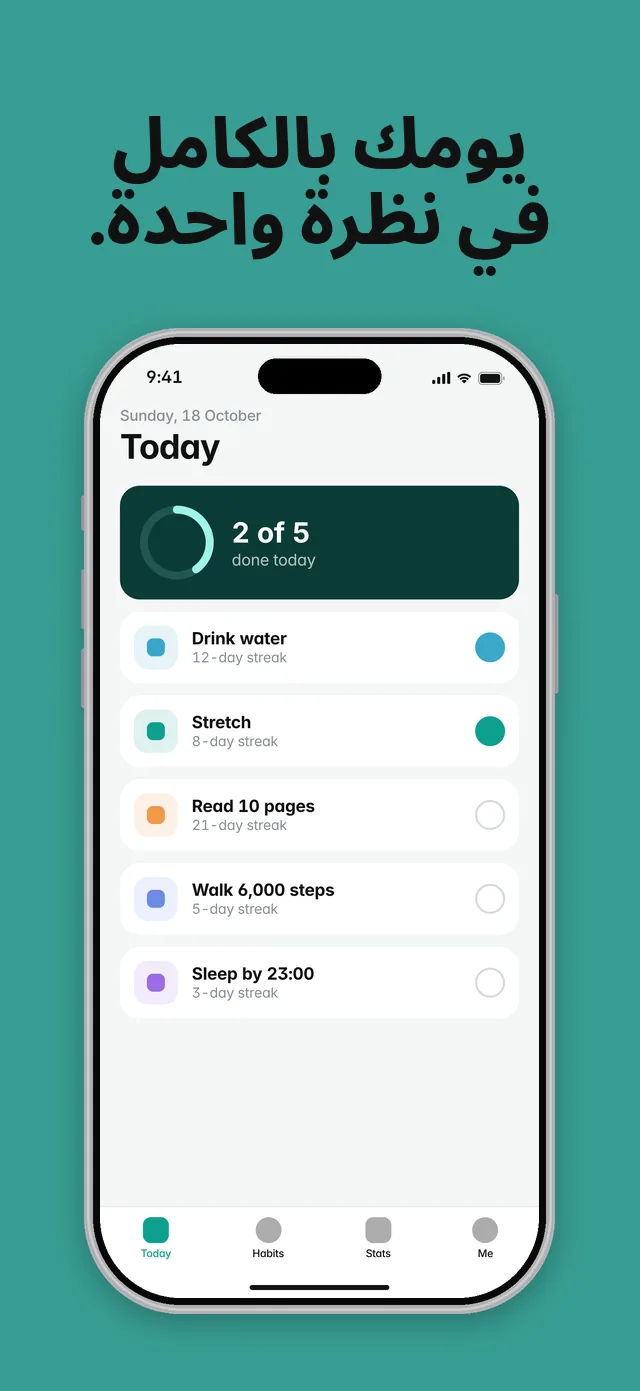
Streakly is a demo app we made to show HelloPack's output. It isn't a customer. This is a real HelloPack render, also shown on our homepage.
| English caption | Arabic caption | Characters (EN → AR) |
|---|---|---|
| Your whole day in one glance. | يومك بالكامل في نظرة واحدة. | 29 → 27 |
(Counts include spaces and the full stop.) Things to notice:
- The caption is centred, as it is in English (a centred caption stays centred), and breaks between words into two lines: يومك بالكامل / في نظرة واحدة.
- The full stop is at the left end of the second line, where the sentence ends.
- It's a noun phrase ("your whole day at a glance"), so there's no gendered verb.
- The character count is close to the English one (27 vs 29). Arabic isn't a "short" language the way Korean often is, so budget the same caption space as for English.
- Only the caption changes. The app UI inside the phone stays in English, left to right, because the demo app itself isn't localized. Only show an Arabic, mirrored UI if your app really ships in Arabic. (Apple's HIG notes that system UI frameworks flip to right-to-left automatically, so a real Arabic build will look mirrored.)
- Don't mirror the screenshot image itself. Apple's HIG advises against flipping images, and says never to flip logos.
Keywords and store text in Arabic
The App Store keyword limit: Apple's docs disagree
Apple doesn't give one consistent answer on how the keyword field is counted:
- App Store Connect Help (Platform version information) says: "You can provide up to 100 bytes of content."
- Apple's "Creating your product page" guide says: "Keywords are limited to 100 characters total."
For Arabic the difference matters. The Arabic letters sit in Unicode's Arabic block, U+0600 to U+06FF, and UTF-8 encodes every character from U+0080 to U+07FF in 2 bytes (RFC 3629). So 100 bytes holds about 50 Arabic letters, while 100 characters would hold 100. We haven't confirmed which rule App Store Connect enforces, so write to the stricter reading: stay within 100 bytes, and check the counter in App Store Connect before you submit. (HelloPack counts keywords in bytes for this reason.)
A quick illustration of the arithmetic (not keyword research): عادات,تذكير,روتين,تقويم,أهداف ("habits, reminder, routine, calendar, goals") is 29 characters but 54 bytes: 25 letters × 2 bytes, plus 4 commas × 1 byte.
Other keyword rules from Apple that apply in Arabic:
- Separate terms with commas and no spaces after the commas. Apple's example uses the plain comma (Property,House,Real Estate). We use the Latin "," in the keyword field: it's 1 byte, while the Arabic ، is 2, and Apple doesn't say the Arabic comma works as a separator.
- App Store Connect Help describes keywords as "each greater than two characters".
- Don't repeat your app name or company name. Apple already searches them.
- Research keywords in Arabic; don't translate your English list. Apple suggests tailoring keywords to each market.
Name, subtitle, promotional text and description
The app name and subtitle are 30 characters each on the App Store, and promotional text is 170. Apple advises against generic claims like "world's best app" in the subtitle, and says to "communicate in the tone of your brand" in the description. Every limit is in our character limits guide.
Google Play notes for Arabic
- Language code: Arabic is ar in Play Console's list of translation languages.
- Character limits are the same for every script: app name 30, short description 80, full description 4000. Google says these limits "apply to both full-width and half-width characters".
- Free machine translation includes Arabic. Play Console's free machine translation of store listings covers ten languages, and Arabic (ar) is one of them. Google notes these translations "are not reviewed or approved by humans", so have a native speaker read the result before it goes live. Google's paid human translation from third-party vendors "costs as little as USD 0.07 per word", though translations "aren't available for all source and target language combinations".
- Text without screenshots: Google says that if you add text translations without localized graphic assets, your graphics show from the default language. An Arabic listing with English screenshots is a common half-finished state.
- Translating your app strings? When you use Play's translation of app strings, Google adds: "If you select Right-to-Left (RTL) languages, ensure your app is RTL-ready, as specific layout adjustments and thorough testing are required."
- Google's screenshot text recommendations apply in Arabic too. Google recommends that taglines take up no more than 20% of the image, that they avoid words like "Best", "#1", "Top", "New", "Discount" or "Sale", and that taglines and text overlays be localized. Google's examples are in English; our reading is that the Arabic equivalents should be avoided too. Google also says "In-game UI does not need to be localized per market."
- Targeting a country instead of the language: translations follow the user's language. To show a different listing in, say, Saudi Arabia only, Google recommends custom store listings.
Sizes and every other Play rule: Google Play screenshot size and Google Play store listing localization.
Arabic checklist
- Add an Arabic localization in App Store Connect and ar in Play Console. Remember that the default language in Arabic-speaking storefronts is English (U.K.).
- Write short English captions first (2–6 words), preferably noun phrases, so the Arabic doesn't need a gendered verb.
- Right-align captions that are left-aligned in English; set
dir="rtl"if they're built in HTML. - Keep Latin app names in one piece and on one line, isolated from the Arabic.
- Wrap only between words, set letter-spacing to zero, and give the lines more height.
- Use ، and ؟, and the same full-stop style on every screenshot.
- Pick one digit style (0–9 for most apps) that matches the app UI, and reword small numbers rather than swapping digits.
- Use a font with full Arabic coverage in a weight that matches your English; check the size next to all-caps Latin.
- Research Arabic keywords. Stay within 100 bytes (each Arabic letter is 2 bytes) and check the counter in App Store Connect.
- Keep the app UI in its real language and direction, and never mirror the screenshot image.
- Get a native speaker to read the full set before you upload.
- Export every size you ship: see App Store screenshot sizes and iPhone Duo sizes.
Arabic screenshots with HelloPack
Upload the screenshots you already have. HelloPack translates the captions into Arabic and keeps your design, for all 6 store sizes (iPhone 6.3″, iPhone 6.9″, iPhone 6.5″, iPhone Duo outer, iPhone Duo inner and Google Play phone). Arabic captions are laid out right to left: a caption that's left-aligned in English is right-aligned in Arabic, and a centred one stays centred. Latin words such as your app name are kept together as an isolated left-to-right run on one line, so they don't break or jump inside the Arabic line. Letter-spacing is set to zero, so the joins between letters stay intact. HelloPack never hyphenates Arabic captions. Captions are set in Noto Sans Arabic, or Noto Naskh Arabic if your design has a serif feel. If a caption doesn't fit, HelloPack wraps it between words and shrinks the font, down to a set minimum size. Only a single word too long for a line even at the minimum font size would be split. It never cuts text off. It also writes the Arabic App Store and Google Play listing natively (not word for word), with keywords counted in bytes. Only the captions are translated. HelloPack never changes the text inside your app's screens. Your zip has the Arabic files in an ar - Arabic folder for each size, and a Text/all-languages.md file with every caption side by side, so you or an Arabic speaker can check the wording.
Arabic gets an extra native review step. On the Indie and Pro plans it costs more credits: 2.5 credits per screenshot instead of 0.1 for most languages. The Launch Kit and the free preview don't use credits (how credits work).
Try Arabic free: pick Arabic as one of your first 2 languages, and the free preview renders it in every size you pick, with no card needed (up to 3 previews a day). Pair it with a long left-to-right language such as German to see both extremes before you pay. After that, it's $19 once for the Launch Kit, or $12/month (Indie, 3 apps) or $24/month (Pro, 10 apps).
Only need the sizes? The free iPhone Duo screenshot resizer runs in your browser.
Guides for other languages
- How to localize app screenshots in Japanese
- German App Store screenshots: how to localize them
- Korean App Store screenshots: how to localize them
Localize your screenshots in your own design. Upload the screenshots you have and see 2 languages free, no card needed.
Get your free preview Free screenshot resizerFAQ
Which App Store countries show Arabic? In Apple's localizations table, Arabic is an additional language in 17 storefronts: Saudi Arabia, the United Arab Emirates, Bahrain, Iraq, Jordan, Kuwait, Libya, Oman, Qatar, Yemen, Algeria, Egypt, Lebanon, Mauritania, Morocco, Tunisia and the United States. It isn't the default language anywhere; the default in all of the Arabic-speaking storefronts is English (U.K.).
Do I need to mirror my screenshots for Arabic? Mirror the caption, not the image. Right-align the caption and set it right to left, but don't flip the screenshot itself. Only show a mirrored Arabic UI if your app really ships in Arabic.
Should Arabic screenshots use 0–9 or Arabic-Indic digits? Both are used, and it varies by region. Microsoft's Arabic style guide recommends Western digits (0–9) as the general rule. Whatever you choose, match the digits shown in your app.
Why does my app name jump around in the Arabic caption?
Latin words are left to right inside right-to-left text, and nearby spaces and punctuation take their direction from their neighbours. Isolate the app name (in HTML, with <bdi>) and keep it on one line.
Is the App Store keyword field 100 characters or 100 bytes in Arabic? Apple's documents disagree. App Store Connect Help says 100 bytes, and Apple's product page guide says 100 characters. Each Arabic letter is 2 bytes in UTF-8, so stay within 100 bytes (about 50 letters) to be safe, and check the counter in App Store Connect.
Does Google Play translate my listing into Arabic for free? Yes, Arabic is one of the ten languages in Play Console's free machine translation of store listings. The translations aren't reviewed by humans, so have them checked. Your screenshots stay in your default language unless you upload Arabic ones.
Sources (checked 31 Oct 2026): Apple, App Store localizations · Apple, Platform version information · Apple, Creating your product page · Apple, Human Interface Guidelines: Right to left · Google, Translate and localize your app · Google, Add preview assets to showcase your app · Google, Create and set up your app · W3C, Arabic & Persian Layout Requirements (alreq), Group Draft Note, 2 Oct 2025 (§3.2 Bidirectional text, §4.1.1.2 Writing styles, §4.3.7 Cursive glyphs, §6.1 Numbers, §7.1 Line breaking, §7.2 Alignment, §7.3 Text spacing, §7.4 Baselines) · MDN, dir · MDN, <bdi> · Microsoft, Arabic Localization Style Guide (PDF; §2.1.2 Words and phrases to avoid, §3.1 Avoid gender bias, §4.1.5 Capitalization, §4.1.12 Numbers, §4.1.14 Punctuation) · Google Fonts, Noto Sans Arabic and Noto Naskh Arabic · Unicode, Blocks.txt (0600..06FF; Arabic) · IETF, RFC 3629: UTF-8.