How to localize app screenshots in Japanese
Japanese is one of the few App Store languages that a storefront uses by default, and it's written very differently from English: no spaces between words, its own punctuation, and a choice of politeness level. This guide covers what to change in your screenshot captions and store text for Japanese, on both the App Store and Google Play. Updated 23 October 2026.
Which App Store storefronts show Japanese
In Apple's App Store localizations table, Japanese appears for exactly one country or region:
| Country or region | Default language | Additional supported language |
|---|---|---|
| Japan | Japanese | English (US) |
Two practical consequences:
- Japanese doesn't appear for any other storefront in Apple's table. For example, the United States storefront lists nine additional languages, and Japanese isn't one of them. A Japanese localization is for Japan.
- Japan's additional supported language is English (US), not English (U.K.). Most countries in Apple's table list English (U.K.) as the default or an additional supported language. Japan lists English (US). If you only have an English (U.K.) listing, check what Japanese customers will actually see.
Apple also notes that the language a customer sees depends on their location's App Store language, their device language settings, the languages you've added and your primary language. So treat the table as a guide, not a guarantee.
Full list of all 50 languages and every country's default: App Store localization languages.
Writing Japanese captions that fit
There are no spaces, so line breaks need a human eye
Japanese kanji, hiragana and katakana are set solid: each character sits in a square frame with no space between characters, and no spaces between words (W3C, Requirements for Japanese Text Layout). That means a layout tool can't find word boundaries the way it does in English. It may break a line in the middle of a word.
Good breaks fall between phrases (a noun plus its particle, for example), not inside a word. In the demo render below, the caption 本もオーディオブックも、すべて記録 breaks after each particle も and after the comma, so every line reads as a unit.
There are also hard rules. Japanese layout rules say a line should not start with a closing bracket, full stop (。), comma (、), middle dot (・), the long-vowel mark (ー), small kana (ゃ, ッ and so on) or an iteration mark, and should not end with an opening bracket such as 「 (W3C, JLReq §3.1.7 and §3.1.8). If your caption tool only wraps at spaces, it can't follow these rules on its own. Set the breaks by hand or check every one.
Use Japanese punctuation
- Use the ideographic comma 、 and full stop 。 rather than "," and ".". W3C describes three conventions for horizontal Japanese text (、。, ,。 and ,.). According to W3C, ,. is "common in books on science and technology", and ,。 "has been adopted for Japanese official publications". Neither is aimed at consumer copy, so 、。 is our recommended default for app captions.
- Many short headlines drop the final 。 entirely. Pick one style and use it on every screenshot.
- Japanese quotation marks are corner brackets 「 」.
- In Japanese layout, 、 and 。 normally take up a full character width, just like a kanji (JLReq). Count them as characters when you check length.
Captions get shorter, but each character is bigger
A Japanese caption usually has far fewer characters than its German or English version. In the demo render below, the German caption "Behalte alle Bücher & Hörbücher im Blick" is 40 characters, and the Japanese one is 17.
That doesn't mean you can use a smaller box. Each kanji is a full square, and dense kanji become hard to read at small sizes. Keep the same type size you use for English, and split long captions into two short lines rather than shrinking the font.
Mixing in English words
App names, brand names and numbers often stay in Latin letters inside Japanese text ("Streakly で毎日の習慣を記録"). That's normal. Make sure your font has Japanese glyphs and matching Latin glyphs. If your brand font has no kanji, choose a Japanese font with a similar weight for the Japanese set instead of letting the system pick a fallback.
You don't need vertical text
Japanese can be written vertically (top to bottom, right to left) or horizontally. W3C notes that both are standard: novels and newspapers are mostly vertical, while official documents and textbooks are mostly horizontal. Screenshot captions are short headlines over a phone frame, so horizontal is the natural choice. You don't need to redesign your layout for vertical text.
Choose a tone and keep it
Japanese has several politeness levels, and English copy doesn't say which one to use. The choice is about your brand, not about being correct.
- Plain or casual (続けよう, "let's keep going"), or ending on a noun (すべて記録, "record everything"), reads short and punchy. Both demo captions below use this style.
- Polite です/ます form (記録できます, "you can record it") sounds friendly and neutral. It's longer, so it fits less per line.
- Honorific keigo (ご利用いただけます) sounds formal. It suits formal services, and it can feel stiff in a habit tracker or a game.
For the description, Apple advises you to "communicate in the tone of your brand." Apple says this about the description only, but we suggest using the same politeness level in the captions and subtitle too. Mixing casual captions with a very formal description reads as two different apps.
Loanwords or Japanese words
Many app terms have both a katakana loanword and a native Japanese word: ストリーク ("streak", used in the demo below) versus 連続記録 ("consecutive record"), or レシピ ("recipe") versus 献立 ("menu plan"). Both can be correct. They differ in feel, and they're different search terms. Ask a native speaker which one your audience uses, and use the same word in captions and keywords.
Example: German and Japanese from the same screenshots
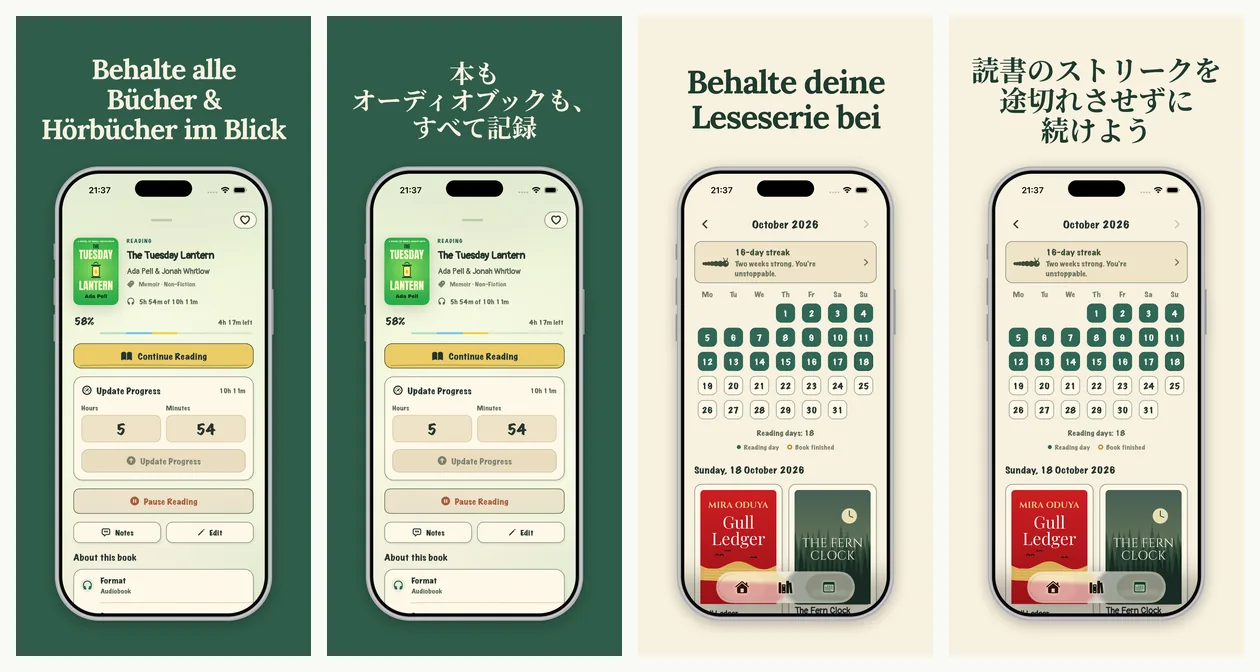
BookWorm is a demo app we made to show HelloPack's output. It isn't a customer. This is a real HelloPack render.
| German caption | Japanese caption | What the Japanese does |
|---|---|---|
| Behalte alle Bücher & Hörbücher im Blick | 本も / オーディオブックも、/ すべて記録 | Three lines, each break after a particle or comma; ends on the noun 記録 ("record") |
| Behalte deine Leseserie bei | 読書のストリークを / 途切れさせずに / 続けよう | Katakana loanword ストリーク; casual volitional 続けよう ("let's keep it going") |
Only the captions change. The app UI inside the phone stays in its original language, because the app itself isn't localized. Only show a Japanese UI if your app really ships in Japanese.
Keywords and store text in Japanese
The App Store keyword limit: Apple's docs disagree
Apple doesn't give one consistent answer on how the keyword field is counted:
- App Store Connect Help (Platform version information) says: "You can provide up to 100 bytes of content."
- Apple's "Creating your product page" guide says: "Keywords are limited to 100 characters total."
For English the difference doesn't matter. For Japanese it might. In the common UTF-8 encoding, each kanji or kana is 3 bytes, so a 100-byte limit would fit about 33 Japanese characters, while a 100-character limit would fit 100. Apple doesn't say which encoding it counts in, and we haven't confirmed which rule App Store Connect enforces for Japanese. Write to the stricter reading: keep the field within 100 bytes, and check the counter in App Store Connect before you submit. (HelloPack counts keywords in bytes for this reason.)
Other keyword rules from Apple that apply in Japanese:
- Separate terms with commas and no spaces. Apple's examples use the ASCII comma ","; Apple doesn't mention the Japanese comma 、, so stick to ",".
- App Store Connect Help describes keywords as "each greater than two characters". Many Japanese words are one or two characters long (本 "book", 料理 "cooking"). Apple doesn't explain how this rule applies to them, so check for warnings in App Store Connect.
- Don't repeat your app name or company name. Apple already searches them.
- Research keywords in Japanese; don't translate your English list. Apple suggests tailoring keywords to each market.
Name, subtitle and description
The app name and subtitle are 30 characters each on the App Store. Japanese usually fits more meaning into 30 characters than English, so use the room for a clear benefit, not more keywords. Apple advises against generic claims like "world's best app" in the subtitle. Every limit is in our character limits guide.
Google Play notes for Japanese
- Language code: Japanese is ja-JP in Play Console's list of translation languages.
- Character limits count full-width characters the same as half-width: app name 30, short description 80, full description 4000, "regardless of what type of characters you are using."
- Free machine translation is available for Japanese. Play Console's free machine translation of store listings includes ja-JP. Google notes these translations "are not reviewed or approved by humans." Google also offers paid human translation from third-party vendors, starting at USD 0.07 per word.
- Without a Japanese listing, users can view an automatic translation of your store listing text. Your graphics still show in your default language, though. If you add Japanese text but no Japanese screenshots, Japanese users see your English screenshots.
- Google's screenshot text recommendations apply in Japanese too. Google recommends that taglines take up no more than 20% of the image, avoid words like "Best", "#1", "Top", "New", "Discount" or "Sale", and that taglines and text overlays be localized. Google's examples are English only; our reading is that Japanese equivalents such as 最高 ("best") or セール ("sale") should be avoided too. Google also says "In-game UI does not need to be localized per market."
- Targeting Japan instead of the Japanese language: translations follow the user's language preference. To show a different listing to users in Japan as a country, Google recommends custom store listings.
Sizes and every other Play rule: Google Play screenshot size and Google Play store listing localization.
Japanese checklist
- Add a Japanese localization in App Store Connect and ja-JP in Play Console.
- Write captions in one tone. Keep each line a complete phrase.
- Check every line break by eye: no 、。ー・ or small kana at the start of a line, and no 「 at the end.
- Use 、 and 。, or drop the final 。 everywhere.
- Use a font with Japanese glyphs; keep the English type size.
- Keep the app UI in its real language.
- Research Japanese keywords. Stay within 100 bytes and check the counter in App Store Connect.
- Get a native speaker to read the full set before you upload.
- Export every size you ship: see App Store screenshot sizes and iPhone Duo sizes.
Japanese screenshots with HelloPack
Upload the screenshots you already have. HelloPack translates the captions into Japanese and keeps your design, for all 6 store sizes (iPhone 6.3″, iPhone 6.9″, iPhone 6.5″, iPhone Duo outer, iPhone Duo inner and Google Play phone). It also writes the Japanese App Store and Google Play listing, with keywords counted in bytes. Only the captions are translated. The app UI stays as you designed it.
Japanese gets an extra native review step. On the Indie and Pro plans it costs more credits: 2.5 credits per screenshot instead of 0.1 for most languages. The Launch Kit and the free preview don't use credits (how credits work).
Try Japanese free: pick Japanese as one of your first 2 languages, and the free preview renders it in every size you pick, with no card needed. We suggest pairing it with a language close to English, such as German, so you see both a long caption and a different script before you pay. After that, it's $19 once for the Launch Kit, or $12/month (Indie, 3 apps) or $24/month (Pro, 10 apps).
Only need the sizes? The free iPhone Duo screenshot resizer runs in your browser.
Guides for other languages
Localize your screenshots in your own design. Upload the screenshots you have and see 2 languages free, no card needed.
Get your free preview Free screenshot resizerFAQ
Which App Store countries use Japanese? In Apple's localizations table, only Japan. Its default language is Japanese, with English (US) as the additional language.
Is the App Store keyword field 100 characters or 100 bytes in Japanese? Apple's documents disagree. App Store Connect Help says 100 bytes, and Apple's product page guide says 100 characters. Stay within 100 bytes (about 33 Japanese characters in UTF-8) to be safe, and check the counter in App Store Connect.
Do Japanese screenshots need vertical text? No. Horizontal Japanese is standard, and it's what fits a caption above a phone frame.
Should I use keigo in my screenshots? Not necessarily. Plain or polite です/ます forms are common in consumer apps. Pick the level that matches your brand and use it everywhere.
Why do my Japanese captions break in odd places? Japanese has no spaces, so tools that wrap at spaces or at any character can split words or leave 、 or 。 at the start of a line. Break lines between phrases, and check each one by eye.
Does Google Play translate my listing into Japanese automatically? Users can view an automatic translation of your listing text, and Play Console offers free machine translation into ja-JP. Your screenshots stay in your default language unless you upload Japanese ones.
Sources (checked 23 Oct 2026): Apple, App Store localizations · Apple, Platform version information · Apple, Creating your product page · Google, Translate and localize your app · Google, Add preview assets to showcase your app · Google, Create and set up your app · W3C, Requirements for Japanese Text Layout (JLReq), Working Group Note, 11 Aug 2020.